How to Buy Gift Cards with Google Pay?
Last updated: May 21, 2026 5 min read
Viktorija Dvariskyte
Google Pay makes everyday purchases faster and more secure – tap your phone, confirm, done. But when it comes to gift cards specifically, the experience isn’t always straightforward. Some retailers welcome Google Pay for gift card purchases without a second thought, while others have restrictions in place that can catch shoppers off guard.
This guide covers every reliable method for buying gift cards with Google Pay, what to watch out for, and how to troubleshoot when things don’t go as planned.
Google Pay: A Secure and Convenient Payment Solution
Google Pay, launched in 2015 (originally as Android Pay), quickly became a popular payment method for users worldwide. It was designed to simplify transactions by allowing users to make secure, contactless payments in stores, online, and within apps. Google Pay replaced older payment systems like Google Wallet, offering a more streamlined and user-friendly experience. With its iconic four-color Google “G” logo, Google Pay became synonymous with fast, secure and convenient payments.
By 2018, Google Pay had gained significant traction as a payment method, thanks to its integration with millions of merchants and its ability to store payment cards, loyalty programs, and even transit passes. Over time, Google Pay evolved into a comprehensive payment platform, enabling users to send money to friends, split bills, and even purchase digital gift cards seamlessly.
How to Purchase with Google Pay via CoinGate Gift Cards?
- Visit CoinGate Gift Cards and browse the available options from +6000 brands to choose.
- Select your preferred brand and choose the amount you want to purchase.
- Click “Buy Gift Card” and proceed to the checkout page.
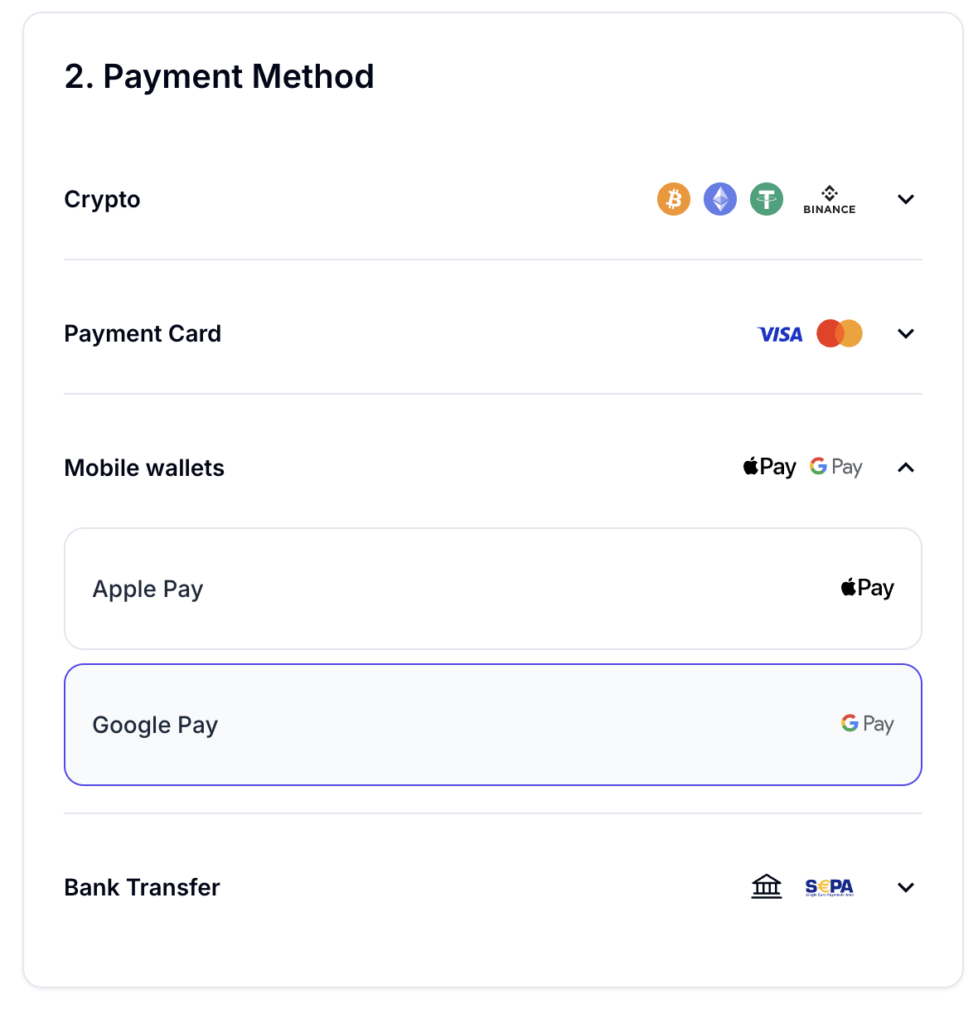
- Choose Google Pay as your mobile wallet payment method.
- Enter your email address to receive an e-gift card.
- Complete the transaction securely using your Google Pay account.
- Your gift card will be delivered instantly to your email inbox.
How to Set up Google Pay on Android Phone
Which Gift Cards Can You Buy with Google Pay?
Google Pay works for a wide range of gift card categories:
- Retail gift cards – Amazon, Target, Walmart, Best Buy, IKEA
- Restaurant gift cards – Starbucks, McDonald’s, Chipotle, Panera Bread
- Entertainment – Google Play, Steam, PlayStation, Xbox, Netflix, Spotify
- Travel – Airbnb, Uber, Southwest Airlines
- App stores – Google Play, Apple App Store (at select retailers)
- Prepaid Visa/Mastercard – these are the trickiest; many stores block digital wallets for prepaid card purchases due to fraud concerns
Tips for a Smooth Experience
Enable NFC on your Android device. Google Pay won’t work in-store without it. Go to Settings, search for NFC, and make sure it’s switched on.
Use Chrome for online purchases. Google Pay integrates most smoothly with Chrome, especially on Android. If the Google Pay button isn’t showing on another browser, switch to Chrome.
Set a debit card as your default. Some retailers that restrict credit card purchases for gift cards still accept debit. Having a debit card set as your primary card in Google Pay can get around this.
Go digital when you can. eGift cards sidestep most in-store restrictions, arrive instantly, and are easy to forward to someone as a gift.
Check the merchant’s payment policy first. A quick look at the retailer’s FAQ or payment info page before heading to the store can save you from a frustrating checkout experience.
Use gift card marketplaces as a backup. Platforms like Raise, GiftCards.com, and Coingate tend to have broader payment method support than individual retailers, and you can sometimes find cards at a discount.
Frequently Asked Questions about Google Pay
Is it safe to buy gift cards with Google Pay?
Yes, it is safe to buy online gift cards with a mobile wallet Google Pay. Google Pay uses advanced security measures, such as encryption and tokenization, to protect your payment information. Additionally, Google Pay requires authentication, such as a PIN, fingerprint, or facial recognition, for transactions, adding an extra layer of security.
How do I pay with Google Pay on my phone?
To pay with Google Pay on your phone, first set up the app by downloading it and adding your debit/credit card or bank account. For in-store payments, unlock your phone, hold it near the contactless payment terminal, and wait for the confirmation checkmark. For online or in-app payments, select “Google Pay” at checkout and confirm the payment using your preferred authentication method.
What gift cards can I buy with Google Pay?
You can buy a variety of gift cards with Google Pay, including those for popular retailers, restaurants, streaming services, and more. Examples include Skype, Macy’s, Uber Eats, Discord Nitro and more. Additionally, platforms like CoinGate Gift Cards offer gift cards that can be purchased using Google Pay, depending on availability and regional support.
How do I put money into Google Pay?
To add money to Google Pay, link a bank account or card by opening the Google Pay app, going to “Payment methods,” and adding your bank account or debit/credit card. You can then use the “Add money” option to transfer funds from your linked account to your Google Pay balance. You can also add money by receiving payments from friends or family through Google Pay. Note that some features may vary depending on your country and the version of the app.

Written by:
Viktorija Dvariskyte
Related Articles